Work together in a project
Start a conversation
Section titled “Start a conversation”Type in the composer at the top of the project’s page (it reads “New conversation in” and the project’s name). The conversation runs on the project’s assistant, with the project’s instructions, files, tools and memory. It appears under Recents on the project’s page, and in your sidebar under the project’s name. The breadcrumb at the top of the conversation shows which project it belongs to.
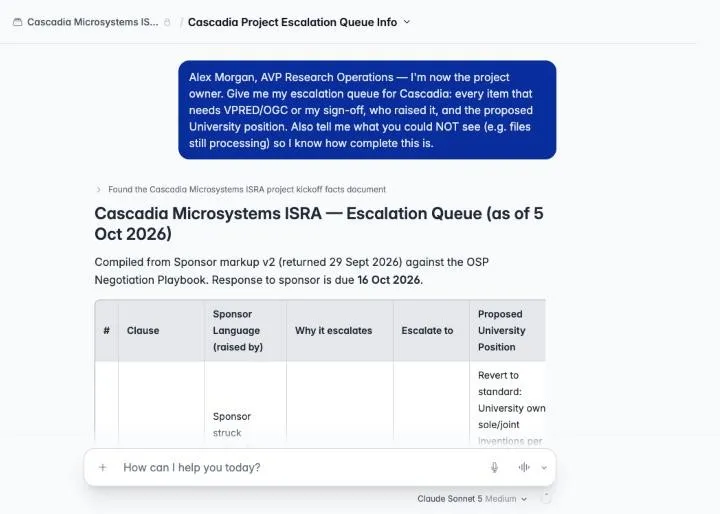
Your conversations are private. Nobody else in the project, including the owner, can see them until you share one.
Your role and preferences
Section titled “Your role and preferences”The project assistant knows which member is talking to it: your name, email and project role come with every message you send, so it can tell you apart from the teammates named in the project’s instructions.
It doesn’t know your job, though. To tell it what you do and how you like answers laid out, set Settings › Chat › Personal instructions once:
I’m the export control and research security specialist in Research Compliance. I review ITAR/EAR, CUI and foreign-national clauses. Format findings as a table: Issue | Risk | Recommended language.
Personal instructions (up to 4,000 characters) are added to every conversation you have, in every project. Where they conflict with a project’s instructions, the project’s win.
Attach a file to a conversation
Section titled “Attach a file to a conversation”Use + in the composer to attach a file to your conversation. Attachments are private to that conversation. They aren’t added to project Files and other members’ assistants can’t see them.
Attach rather than upload when:
- It’s a one-off (an email thread, a draft you’re not ready to share).
- Only you need it. Anything in Files is searched for everyone’s conversations.
- The project’s files are still Setting up and you need an answer now.
Both work for a redline with tracked changes: the assistant can quote what the other side struck and what they added, whether the redline is attached or in Files. Put it in Files when the whole team is working from it.
Share a conversation with the project
Section titled “Share a conversation with the project”Open the conversation’s menu (the chevron next to its title), choose Share, and pick Project members (“Everyone in this conversation’s project can view it and continue it in their own conversation”).
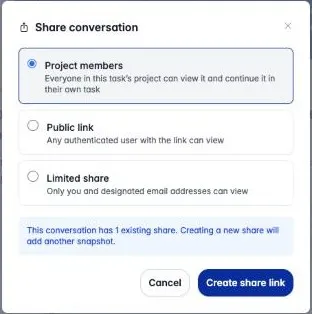
- A share is a snapshot: messages you add later aren’t included. Share again to update it. A new project share replaces the old entry, so the conversation is listed once.
- Shared conversations appear under Shared with the project on the project’s page, for every member, with who shared them and when.
- To stop sharing, use the trash icon next to a conversation you shared.
Let people know
Section titled “Let people know”Sharing tells nobody unless you ask it to. Under Let people know, choose Everyone to notify every member, or Choose people to pick members from a list. You can only notify people already in the project.
Add a note (up to 280 characters) to say what you need, such as “Can you check the spring dates?” The note appears under the conversation in Shared with the project and in the notification. Sharing the conversation again replaces the note along with the snapshot.
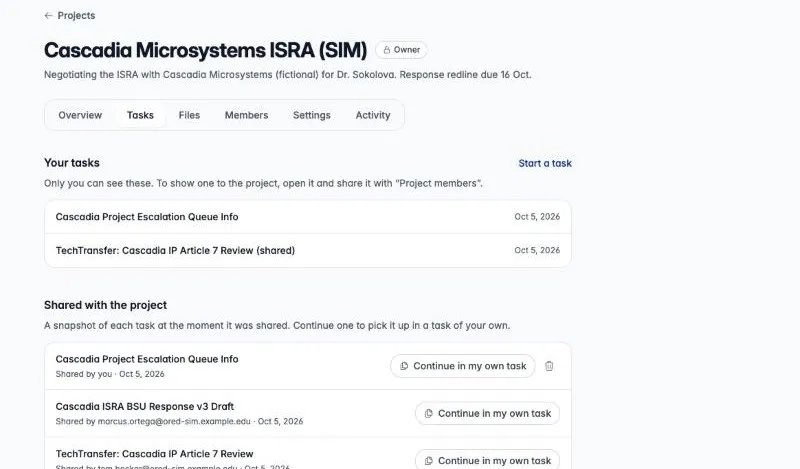
Public link and Limited share are also offered. They share the conversation outside the project, so think twice before using them for project work.
Share an output with the project
Section titled “Share an output with the project”When the assistant makes an artifact in a project conversation, such as a chart, a web page or a CSV, you can share that artifact with the project on its own, without sharing the whole conversation. Open the artifact’s Share menu and pick Project members.
- It appears under Outputs on the project page, between the composer and Recents, and every member can open it. Its card shows the top of the artifact: the opening of a document, the first rows of a table, or the image itself.
- A share shows one version. Sharing a newer version replaces the one listed.
- To take it off the project, use the ✕ on its card. Editors can remove anyone’s output; everyone else can remove only their own.
- People removed from the project lose access to its outputs too.
Pick up someone else’s work
Section titled “Pick up someone else’s work”Open a shared conversation to read its snapshot.
You can also ask the assistant. In any conversation in the project it can list the conversations members have shared and read them, so “what escalations are still open?” covers shared work as well as Files and project memory. It reads the snapshot each person shared: what they asked and what the assistant answered, without tool results or attachments. It only sees what’s shared with the project, never anyone’s private conversations.
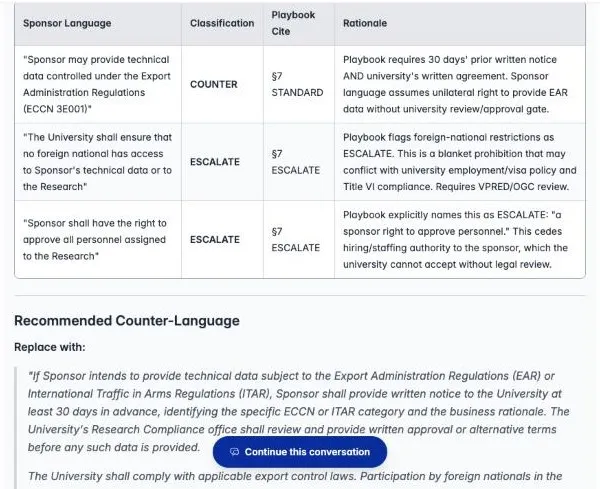
To build on it, choose Continue in my own conversation. You get your own copy of the conversation, still in the project and on the project’s current assistant, and the original is untouched. The assistant sees the copied conversation from your first message, and the copy shows what the original author typed.
Attachments aren’t copied. They belong to the person who shared the conversation. Where the original had one, the copy says which files weren’t copied. Attach your own copy of any you need, or ask the person who shared it to add it to Files.
Project memory
Section titled “Project memory”The assistant can remember things across conversations, at two levels:
| Project memory | Just for me | |
|---|---|---|
| Who it’s for | Everyone in the project | Only you, only in this project |
| Who can save to it | Editors and the owner | Any member |
| Good for | Deadlines, owners, agreed positions, open issues | Your formatting preferences, your own working notes |
| How to ask | “Record in project memory that…” | “Remember for me (not the team) that…” |
How it reaches other people’s conversations: each memory has a short index, and the index is what the assistant sees at the start of every conversation. Detailed entries are only read when the assistant goes looking. When the assistant saves a new memory, it adds a line for it to the index automatically, and when an update changes what that line says (a new date, say), the line is rewritten to match. You only need to say what to record:
Record our agreed Article 3 payment position in project memory.
“Just for me” memory works the same way. Ask the assistant to remember a preference for you and it’s saved and applied in your next conversation in this project:
Remember this just for me, not the team: when I ask for a status check, reply with one line per open article.
Other useful requests:
- “What’s in project memory?” or “List the project memory files.” (You can also browse it yourself; see below.)
- “Update the open-issues note: the indemnification clause is resolved.”
- “In the Article 6 note, replace the 90-day review item. It’s out of date.” (The assistant edits a memory file by rewriting it. It can’t delete a file outright.)
Browse memory
Section titled “Browse memory”Open Memory in the project’s settings, beside Files. Two tabs at the top switch between Project memory and your own (Just me). Each lists the Index first, because it’s what every conversation sees, and then the files.
Open a file to see its items. Under each item is who added it and how: saved by
the assistant from someone’s conversation, proposed and approved, or edited
directly. When it came from one of your own conversations, you can open that
conversation from there.
Words in double square brackets, like [[deadlines]], link to other files.
The bar beside each file shows its size against the limit for one file (8,000 tokens, roughly 6,000 words). It turns amber when a file is close, and a change that would take a file over the limit is refused. The index has its own bar: only about the first 2,000 tokens of the project index reach a conversation (1,000 for yours), so keep it to one short line per file.
Edit memory yourself
Section titled “Edit memory yourself”Editors and the owner can change project memory on the Memory page, and anyone can change their own (Just me):
- Edit on a file opens it with one box per item. Change the wording, add an item, remove one (it goes to the archive), or drag the handle to reorder. From the keyboard, the arrow keys move between handles and Alt with an arrow moves the item.
- The link button beside an item inserts a link to another file. Pick the file from the list; you can type to narrow it.
- New file asks for a short lowercase name, such as
deadlines, plus a description that tells the assistant when to open it. The new file is added to the index for you, a changed description rewrites the file’s index line, and a deleted file is taken out of it. - Edit index changes the index itself.
The editor points out problems as you type, such as a link to a file that doesn’t exist or a name that’s already taken. If someone else saved the same file while you had it open, your save is refused so their change isn’t lost. Reload the file and make your change again. The assistant works the same way: it reads a file before changing it, and if a teammate saved it in between, it reads it again rather than overwrite their change.
Pin an item
Section titled “Pin an item”Editors and the owner can pin an item in project memory, and anyone can pin items in their own. A pinned item can’t be removed by any change, including one the assistant makes, until a person unpins it. Pin the facts the whole project depends on, such as a signed-off position or a hard deadline.
Bring back a removed item
Section titled “Bring back a removed item”When an item is removed from a file, or its whole file is deleted, it goes to the Archive on the Memory page. Items stay there for a year in project memory and 30 days in yours. Restore puts an item back at the end of its file, with its history, and recreates the file if it was deleted. Restoring takes the same right as editing.
See a file’s history
Section titled “See a file’s history”History on a file lists every saved version: who saved it and how (edited on the Memory page, saved by the assistant, approved from a proposal, or restored). Pick a version to compare it with the file now. If you can edit the file, Restore brings that version back as a new version, so nothing in the history is lost and a restore can be undone the same way. Items that come back keep their original history. A pinned item that the old version doesn’t have must be unpinned first.
Propose a change
Section titled “Propose a change”Viewers can’t save to project memory directly. A viewer can propose a change instead: on the Memory page, use Propose a change on a file or Propose a file, or ask the assistant to “propose adding to project memory that…”. The proposal waits for review, and nothing changes until an editor or the owner approves it. Editors can ask the assistant to propose too, when they want a second look.
Review proposed changes
Section titled “Review proposed changes”Editors and the owner are notified of each proposal. The project page shows Proposed memory changes above Recents when any are waiting; it, the notification and Review on the Memory page all open the review queue. Pick a proposal to see the file as it is and as proposed, side by side, with what it adds and removes highlighted. Then Approve it, Edit before approving, or Decline it, optionally with a note for the person who proposed it. They’re notified of your decision either way. If someone changed the file after the proposal was made, you’ll need to edit the proposal against the current file before you can approve it.
If you proposed a change, you’ll see it under Your proposals on the Memory page until it’s decided, and you can Withdraw it.
Tidy up memory
Section titled “Tidy up memory”Over time a project’s memory collects items that repeat each other, items a newer one has replaced, and notes about meetings and deadlines that have passed. Editors and the owner can ask the assistant to tidy it: Tidy up on the Memory page reads every file, and the ✨ button on a file reads just that one. It takes a few minutes, and you can leave the page while it runs.
The assistant only suggests changes. They wait in the review queue, and memory doesn’t change until an editor approves them. It suggests four kinds:
- Merge items that say the same thing into one. A merge keeps every number, date, link, name and reason its items had, and adds nothing new. The assistant’s suggestion is checked for that before you see it.
- Replace an item that a newer one updates or contradicts.
- Remove an item whose dates have all passed, like a meeting that happened.
- Move a group of items to a new file. This is only suggested for a file that is close to its size limit, and only for a group of at least five items about a topic of its own, such as the LTI tools in a file about the Canvas sync. The items move word for word, and the file keeps a line that links to the new one, so anything that pointed at the old file still finds them. The new file is added to the memory index.
Pinned items are never removed or moved. Each suggestion shows what it takes out and why. Untick any you don’t want, then Apply the rest. If someone edited the file since the run, the edit is kept. Any suggestion that touches an edited item is skipped, and the review says so. Items that leave go to the archive like any other removed item, labelled with how they left, so you can bring one back. Moved items aren’t archived, because they haven’t left memory.
An item that replaced others says so under it: Replaces an older item or Merged with 1 other item. Open it to see what it replaced, and, if you can edit the file, Put it back to return that item to the end of the file. You can do this for as long as the archive keeps it. An item that was moved says which file it came from.
Tidy up your own memory
Section titled “Tidy up your own memory”Anyone in the project can tidy their own memory: open Just me and use Tidy up, or the ✨ button on one of your files. It makes the same kinds of change, checked the same way, but there’s no review queue: the changes are saved as soon as the run ends, because nobody else’s memory is affected.
When it finishes, the line under the buttons says how many changes it made, and What changed lists them file by file. Undo puts your files back as they were before the run, as new versions, so nothing in their history is lost. You can undo for about a month (the line says until when). If you’ve changed a file since the run, Undo leaves that file alone so your edit is kept, and says so. Its History still has the version from before the tidy-up, and the archive still has the items it took out, so you can bring those back yourself.
If the tidy-up moved items to a new file, Undo puts them back where they were and removes the new file. It does that only if you haven’t changed either file since; otherwise it leaves both as they are and says why.
If you edit a file while the run is working on it, the run leaves that file alone too.
The content check
Section titled “The content check”Everything saved to memory in a project goes through a quick content check, whoever or whatever saves it: you, a teammate, the assistant, an approved proposal, a restore or a tidy-up. It looks for two kinds of thing that don’t belong in shared memory:
- Text that reads like an instruction to the assistant, such as “ignore previous instructions” or “you must now…”, or the markup tools use. Memory is reference material: the assistant reads it as facts, and teammates’ conversations read it too, so write “Vendor A is preferred because of the support contract”, not “Always recommend Vendor A”.
- Passwords and keys, such as an access key or a password in a link. Everyone in the project can read project memory.
Your organization may add its own patterns, such as student ID numbers.
What happens next depends on how your organization set it up. Usually the save goes through and you’re told what was flagged: a warning after you save, and a Content check line under the item, which everyone who opens the file sees. Reviewers see a flagged proposal with a note above it, and the flagged item marked. Some organizations block flagged text instead: the save is refused and the message says which item to change. Either way, nothing is changed in what you wrote. Only new text is checked, so an item that was flagged before never stops you editing the rest of the file.
The check is a pattern match, not a judgement. If it flags something that’s fine, such as a fact that happens to contain the word “password”, you can leave it.
Export memory
Section titled “Export memory”Export on the Memory page downloads the memory you’re looking at
(Project or Just me) as a zip file: the index, each file, and a
provenance.json that records, for every item, who added it and when, who last
changed it, and whether it came through a proposal or a restore. Anyone in the
project can export project memory.
Ask for a Word redline
Section titled “Ask for a Word redline”If the project has the Word Documents tool, the assistant can produce a
.docx with real tracked changes. Attach the other side’s draft and say
what you want:
Attached is Cascadia’s v2 redline. Create “Cascadia ISRA – BSU Response v3.docx”: start from their text and show our changes as tracked changes (author “Boise State OSP”), with a short italic note under each article citing the playbook section.
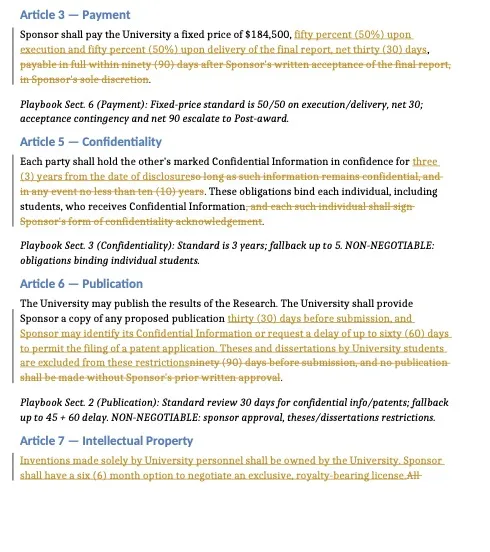
Open the file in Word and use Review › Track Changes to accept or reject each change. The generated file is saved to your conversation, not the project:
- Download it from the conversation.
- Review it. The assistant can miss a clause or misstate a rule.
- Teammates can’t open a file from your conversation, even after you share the conversation. To give the team and the assistant your draft, download it and add it to project Files. Its tracked changes stay readable there (see Word redlines in Files). Name it so it’s clear it’s your side’s proposal.
Settings history and Activity
Section titled “Settings history and Activity”Every saved change to instructions, model, tools or skills becomes a numbered version. Open History in the project’s settings rail and expand a version to see the change and who made it.
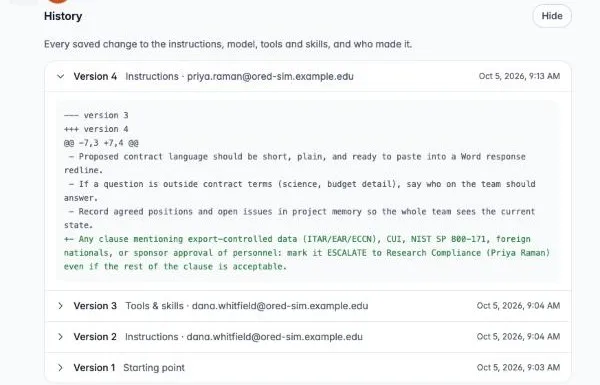
To go back to an earlier version, copy the text from History into the editor and save. That becomes a new version.
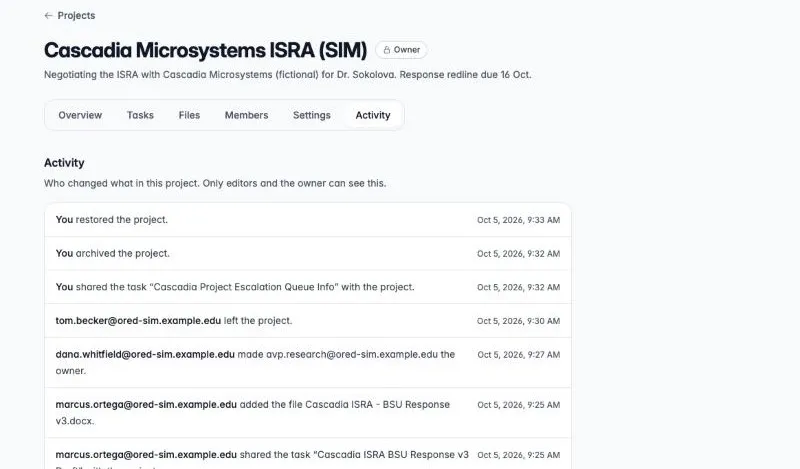
Activity in the rail (editors and owner) lists who added people, changed roles, added files, shared conversations, edited settings, archived or restored the project, and left it. A share shows as “shared the conversation “…” with the project”, and taking one down as “stopped sharing the conversation “…””.
Notifications
Section titled “Notifications”The bell next to your name in the sidebar shows when someone:
- adds you to a project
- changes your role
- removes you
- makes you the owner
- archives or restores a project you’re in
- leaves a project you own
- shares a conversation and chooses to notify you, with their note if they left one
- proposes a change to project memory, or decides on one you proposed
- runs memory maintenance that suggests changes for you to review
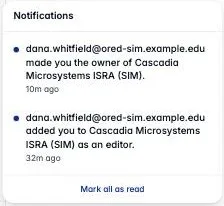
Opening a notification marks it read and takes you to the project (to Members when someone left, and to the conversation itself when someone shared one). If the conversation has since stopped being shared, the page says so. Notifications expire after 90 days, and you’re never notified about your own actions. New files and setting changes don’t notify anyone. Check Activity.
Archive, restore, delete, transfer, leave
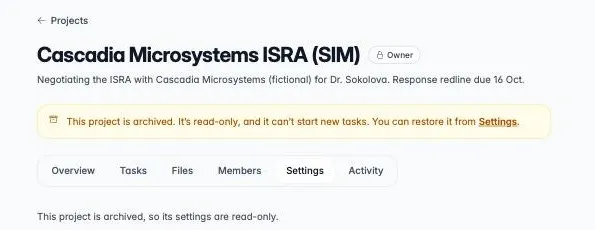
Section titled “Archive, restore, delete, transfer, leave”| Action | Who | Where | What happens |
|---|---|---|---|
| Archive | Owner | Project menu › Archive project | Read-only for everyone: no new conversations or messages, no file or setting changes. Files and shared conversations stay readable. Every member is notified. |
| Restore | Owner | Project menu › Restore project | Back to normal. Every member is notified. |
| Delete | Owner | Project menu › Delete project, archived projects only | Removes the project, its assistant, its files and its list of shared conversations. Each member keeps their own conversations from the project as ordinary conversations. |
| Transfer ownership | Owner | Members › Make owner | Goes to an editor who has signed in at least once. The old owner becomes an editor, and the new owner is notified. |
| Leave | Anyone but the owner | Project menu › Leave project | You lose access, and the owner is notified. Conversations you shared stay listed for the team. |
The project menu opens from the project’s name at the top of its page.